Multi-factor authentication and CAPTCHA, now built in
Your catalogue, your royalties and your artists’ data all sit behind one login. Two new pages under Customization → Security let you harden that login for everyone in your workspace: multi-factor authentication, and a CAPTCHA on the forms bots actually target.
Require two-factor authentication
One toggle turns 2FA on for the whole workspace. When it is on, every user must set up a second factor at their next login before they can reach the app — no per-user chasing, no gap between when you decide and when it applies.
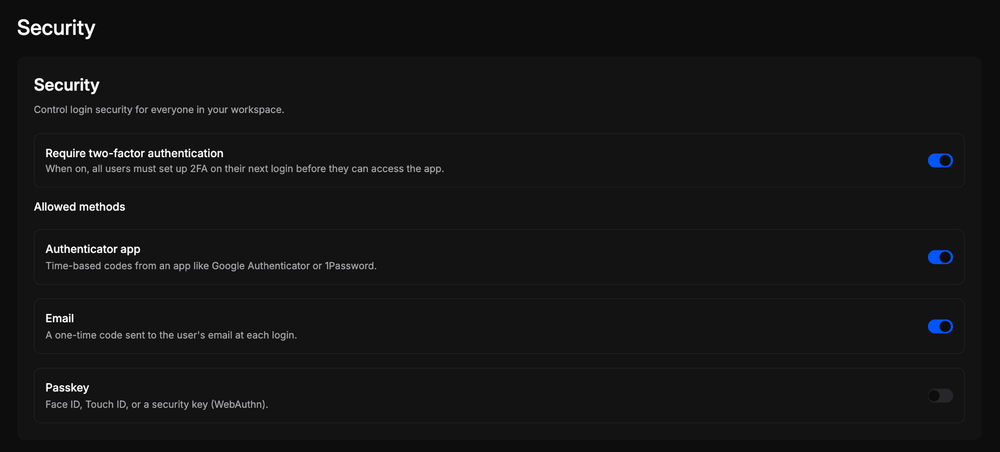
You choose which methods your users are allowed to enrol:
- Authenticator app — time-based codes from an app like Google Authenticator or 1Password.
- Email — a one-time code sent to the user’s email at each login.
- Passkey — Face ID, Touch ID, or a hardware security key, via WebAuthn.
Enable the ones that fit your team. Leave passkeys off if your artists are on shared devices, or allow all three and let each person pick what they will actually use.
CAPTCHA on login, signup and password reset
Credential stuffing and fake signups hit the same three forms every time. Turn on CAPTCHA and all three are protected — login, signup and forgot password — without touching anything else in the flow.
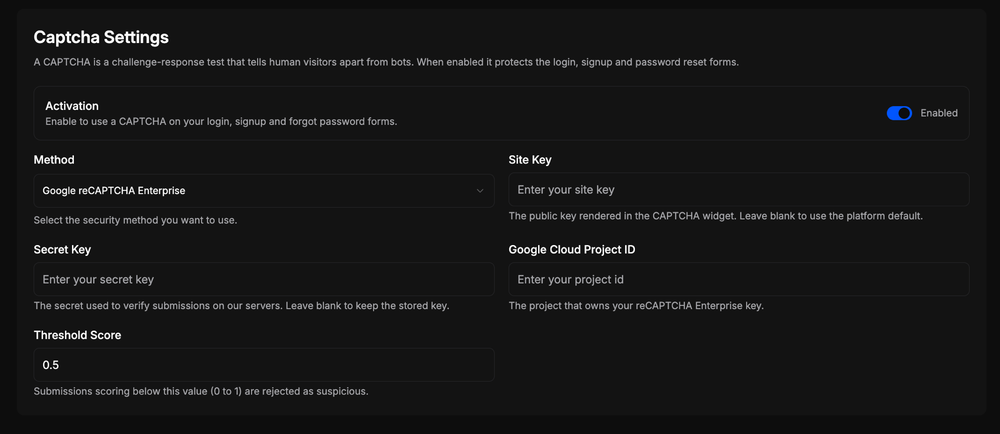
- Google reCAPTCHA Enterprise, configured with your own site key, secret key and Google Cloud project.
- Leave the site key blank to run on the platform default instead of your own.
- The secret key is stored for you — leave the field blank to keep it, or enter a new one to replace it.
- Set your own threshold score between 0 and 1. Submissions scoring below it are rejected as suspicious; 0.5 is the default.
Why it matters
Security controls are only useful if the person responsible for them can actually turn them on. Both of these live in your own settings, apply across your whole workspace, and take effect the moment you save.